![sudo[freedom].org](https://sudofreedom.org/content/images/2025/08/sudo.png)
How to Detect Rootkits on Linux and Keep Your System Secure
![sudo[freedom]](/content/images/size/w160/2025/08/square.svg)
You made the switch to Linux. You escaped Windows telemetry, Google's data mining, and Big Tech's surveillance apparatus. You own your system now.
But freedom requires vigilance.
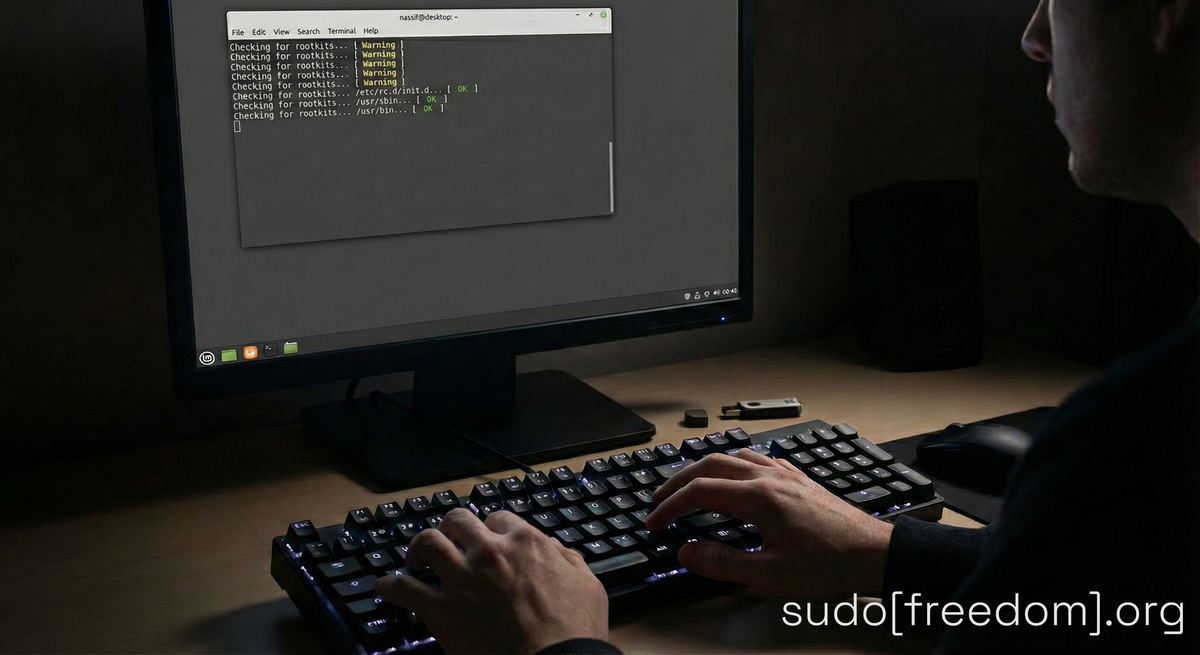
Even on Linux, threats exist. One of the stealthiest is the rootkit, a type of malware designed to hide itself deep in your system, grant backdoor access to attackers, and remain undetected for long periods. Rootkits can mask their own processes and silently compromise your digital sovereignty.
The good news is that Linux gives you transparent, open-source tools to detect and defend against these threats. Two of the most widely used are chkrootkit and rkhunter.
Quick Start
If you want to get scanning immediately, open your terminal and run these commands.
Bash
# 1. Install both tools
sudo apt update && sudo apt install -y chkrootkit rkhunter

# 2. Initialize the rkhunter database (establishes a baseline)
sudo rkhunter --propupd

# 3. Run the scans
sudo chkrootkit
sudo rkhunter --check
What Are Rootkits and Why Should You Care?
A rootkit is malicious software engineered to conceal its presence while maintaining privileged (root) access to your system. Unlike regular malware that might announce itself with popups or slowdowns, rootkits operate in the shadows.
They can:
- Hide files, processes, and network connections.
- Grant remote attackers persistent access to your machine.
- Intercept keystrokes and monitor your activity.
- Modify system binaries (like the
lsorpscommands) to avoid detection.
Even though Linux has a smaller attack surface than Windows, threats can still be introduced through compromised shared networks, infected downloads, or social engineering attacks. If you interact with the outside world digitally, periodic rootkit scanning is a smart precaution.
The Tools
1. chkrootkit
A lightweight scanner that checks your system for signs of over 70 known rootkits. It inspects critical system binaries, directories, and network behavior for anomalies.
2. rkhunter (Rootkit Hunter)
A more comprehensive scanner that performs deeper analysis. It compares the current state of your system files against a known "good" baseline to detect changes. It checks for:
- Hidden files and suspicious permissions.
- Kernel module modifications.
- Backdoor ports.
Both tools are open source. No telemetry. No remote servers. You control them.
Installation
These instructions work on Linux Mint, Ubuntu, Debian, Pop!_OS, and other Debian-based distributions.
Open a terminal and run:
Bash
sudo apt update
sudo apt install -y chkrootkit rkhunter
Note for other distributions:
- Fedora:
sudo dnf install chkrootkit rkhunter - Arch Linux:
sudo pacman -S rkhunter chkrootkit
Running Your First Scan
Scanning with chkrootkit
To run a complete system scan:
Bash
sudo chkrootkit
You want to see "not infected" across the board. If you see "INFECTED," don't panic yet—read the "Handling Warnings" section below.
Scanning with rkhunter
rkhunter works by comparing your current files to a database of file properties.
1. Create the Baseline First, tell rkhunter to record the current state of your system files:
Bash
sudo rkhunter --propupd
2. Run the Check Now, run the scan:
Bash
sudo rkhunter --check
You will need to press Enter to scroll through the results. The tool will flag anything suspicious with a red warning.
What to Do If You See Warnings (False Positives)
Both tools, especially rkhunter, are sensitive. They often flag legitimate changes as threats (False Positives). Do not reinstall your system immediately. Follow these steps to investigate.
1. Verify the Flagged File
If a file in /usr/bin or /usr/sbin is flagged, check if it belongs to a real package.
Bash
dpkg -S /path/to/suspicious/file
Example: dpkg -S /usr/bin/ls should return coreutils.
2. Compare Against Official Package Hashes
This is the most reliable check. We will use a tool called debsums to verify if the file on your disk matches the official file from your Linux distribution's servers.
First, install the tool (it is not installed by default):
Bash
sudo apt install debsums
Then, run the check:
Bash
sudo debsums -s
- No output: All your system files match the official versions. You are likely safe.
- Output listed: The specific files listed have been modified. If you didn't modify them, investigate further.
3. Common False Positives
- SSH Protocol: Warnings about
PermitRootLoginare configuration suggestions, not infections. - Hidden Files: Development tools and modern desktop environments often create "hidden" files that older scanners might flag.
Keeping Your Defenses Updated
Updating the Signatures
Rootkit signatures change. Update rkhunter's database weekly:
Bash
sudo rkhunter --update
Handling System Updates
Crucial: When you update your Linux system (e.g., sudo apt upgrade), your system files change legitmately. rkhunter will see these changes and panic during the next scan.
After every system update, update the baseline:
Bash
sudo rkhunter --propupd
Automating Daily Scans
You can set up your system to scan itself automatically every night using cron.
1. Verify file paths Different Linux distributions store these programs in different places. Check where yours are:
Bash
which rkhunter
which chkrootkit
Make a note if they are in /usr/bin/ or /usr/sbin/.
2. Edit the Schedule Open the root user's schedule:
Bash
sudo crontab -e
3. Add the Jobs Paste the following lines at the bottom of the file. This runs rkhunter at 2:00 AM and chkrootkit at 3:00 AM.
Bash
# Run update, then run check. We use ';' so the check runs even if the update fails.
0 2 * * * /usr/bin/rkhunter --update; /usr/bin/rkhunter --check --sk --rwo >> /var/log/rkhunter.log

# Run chkrootkit
0 3 * * * /usr/sbin/chkrootkit >> /var/log/chkrootkit.log
--sk: Skips "Press Enter" prompts.--rwo: Reports Warnings Only (keeps logs clean).
To check your logs later:
Bash
less /var/log/rkhunter.log
Building a Complete Security Strategy
Rootkit scanners are just one layer. For a secure system, add these practices:
1. Keep Updated Security patches are your first line of defense.
Bash
sudo apt update && sudo apt full-upgrade
2. Enable the Firewall Block unwanted incoming connections.
Bash
sudo ufw enable
3. Scan for General Malware (ClamAV) Rootkits are rare; standard viruses are more common in files you share with Windows users.
Bash
sudo apt install clamav clamav-daemon
To update the virus database manually, you must stop the background service first to avoid "database locked" errors:
Bash
sudo systemctl stop clamav-freshclam
sudo freshclam
sudo systemctl start clamav-freshclam
Then scan your home folder:
Bash
clamscan -r /home
4. Browser Privacy Your browser is your biggest vulnerability. Use Firefox with uBlock Origin to block malicious scripts and ads.
Summary
You now have a system that:
- Scans for rootkits daily.
- Logs suspicious activity.
- Allows you to verify if files have been tampered with using
debsums.
Your system. Your rules. Your security.
Sources and Further Reading
- chkrootkit official documentation
- rkhunter official documentation and FAQ
- Linux Mint community documentation on security tools
- MITRE ATT&CK Framework: Rootkit Technique
- ENISA Threat Landscape Report (2023)
- Linux Security Foundation: Common Attack Vectors
- Debian Security Team: Package Integrity Verification
- Ubuntu Security Documentation
- GPL License Information (chkrootkit and rkhunter)